As you’ll know if you’ve ever tried to build a reasonably sized microservices application locally, you can run out of system resources quickly. I have an M1 Mac Mini with just 8GB of non-upgradable RAM and, although it’s pretty fast, once I’ve spun up a few services, each with their own database instances and caches, things can get a bit sluggish.
So, in order to free up some of that valuable memory, I figured I’d offload things to a Kubernetes cluster running on some relatively cheap hardware, and in this post I’ll describe the steps I took so that you can do the same.
Note that all instructions are macOS-based. (sorry/not sorry)
The Software
Although you could install a standard K8s distribution, for something as small as a Raspberry Pi it makes sense to use something that’s purpose-built for running on IoT appliances or at the network edge. For our RPi cluster, we’ll be using Rancher’s K3s as it’s a lightweight, certified Kubernetes distribution built for running production workloads that’s optimised for ARM processors and works great on the Raspberry Pi.
The Hardware
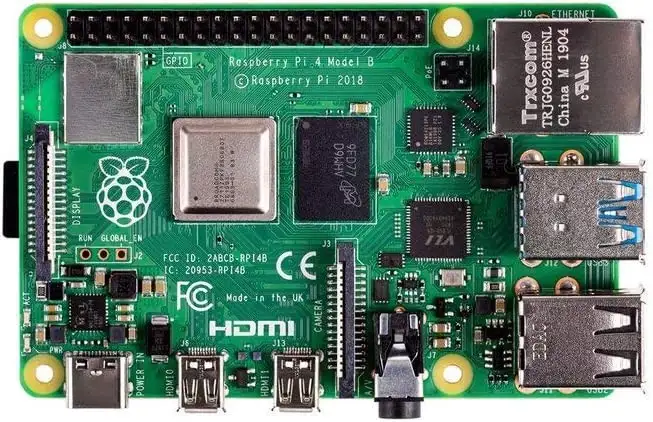
Start by grabbing a few RPIs with power supplies. One is enough, but the more you can throw at this, the better. I went for 4x Raspberry Pi 4 Model B units with 4GB of RAM each.

Of course, you’ll also need some storage, so grab some SD cards with sufficient capacity. I went with 1x SanDisk Ultra 256 GB microSDXC Memory Card for the master node and 3x SanDisk Ultra 32 GB microSDXC Memory Cards for the agents. I got a larger card for the master node as eventually, I’ll want it to also house a private container registry.
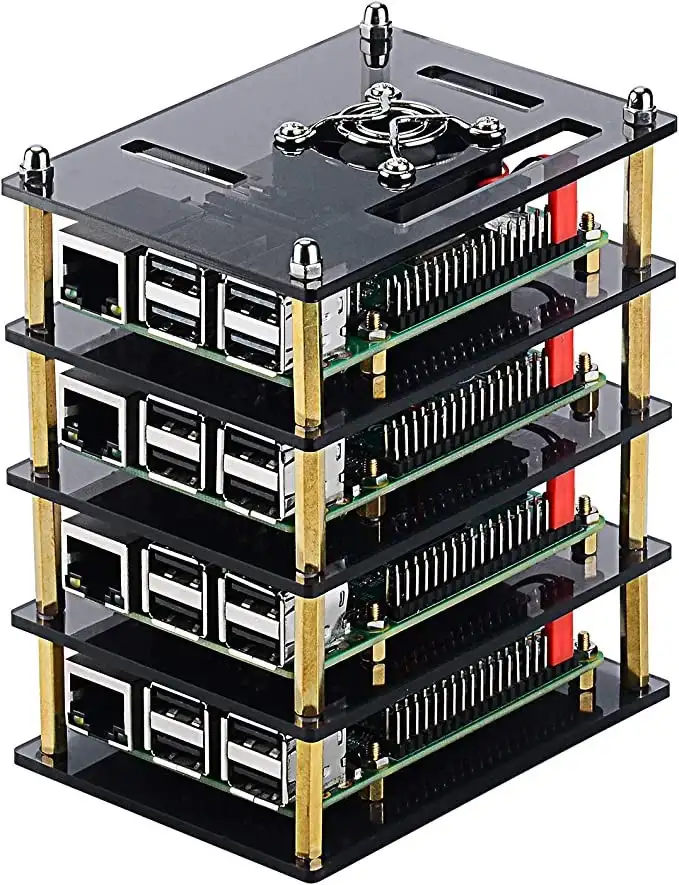
To house the RPIs, I picked up this Pi Rack Case, which came complete with fans and heatsinks. It looks great once it’s built, although the fans were a little louder than I would have liked so I bought four replacement fans and the cluster is now virtually silent.
The Installation
Burn the OS (x4)
To burn the OS, I use the Raspberry Pi Imager. This makes OS selection and initial set-up super easy and, especially if you're burning multiple cards, as the base configuration of the master and agent nodes is identical, I’d recommend setting up all four SD cards at the same time.
For our nodes, we don’t need a GUI so we’ll use Raspberry Pi OS Lite (64-bit). You can find this under Raspberry Pi (other) when you're choosing the operating system. It’s a port of Debian Trixie with no desktop environment. Once you’ve selected the OS and inserted your SD card, customise the build as follows:
- Set an appropriate hostname — I elected to use
k3s-0for my master node, withk3s-1,k3s-2, andk3s-3for my agents - Configure the locale appropriately
- Create a username with a password — the default
piuser is no longer created by default - Set up Wi-Fi — this is the quickest and easiest option, and it may be tidier; however, I'd recommend using an ethernet switch to avoid nodes dropping out of the cluster
- Enable SSH — ideally with an SSH key, as this will make access to the cluster much easier from your development machine. If you decide to go with password authentication to start with, you can easily transfer your SSH key later with
ssh-copy-id <username>@<hostname> - Finally, there's no need to enable Raspberry Pi Connect, so just hit Next…
Now hit the WRITE button and wait for the image to burn to the SD card. The card will be unmounted at the end of the process, so just remove it and insert the next card. Repeat the process, not forgetting to update the hostname for each card. Keep your cards in sequence so you know which is which!
Enable Cgroups (x4)
Now you’ll need to reinsert each of the cards in turn and enable cgroups before you boot up.
So, from your terminal, enter:
sudo nano /Volumes/bootfs/cmdline.txt
Add:
cgroup_enable=cpuset cgroup_enable=memory cgroup_memory=1
…and save. Now eject, rinse, and repeat for each card.
Boot It Up
Now you can insert your SD cards into your cluster and boot it up.
Use Static IP Addresses
In order to access and configure the nodes, we need to make sure that they’re using static, not dynamic, IP addresses. You should be able to configure this easily through your router management software, which will typically ask you to supply the IP address you want to use, the device name, and its MAC address. You can either fix the IPs that were dynamically assigned or pick a suitable range of IPs instead. For convenience, I’d suggest that you add the IPs to your list of local hosts, so on your local machine enter:
sudo nano /etc/hosts
Add:
192.168.1.10 k3s-0
192.168.1.11 k3s-1
192.168.1.12 k3s-2
192.168.1.13 k3s-3
Once you've configured your router, you may need to reboot your cluster in order for the changes to take effect.
PRO TIP: At this point, as all nodes in the cluster are identical, using a terminal broadcast tool that mirrors input across multiple terminal windows is super useful. I use Hyper with the hyper-broadcast plugin for this.
You should now be able to use SSH to connect to your nodes using:
ssh <username>@<hostname>
Reduce GPU Memory
By default, the GPU memory is set to around 64MB. As our cluster is headless, we can reduce that to around 16MB. On each node:
sudo nano /boot/firmware/config.txt
Add this anywhere in the main section before the [cm4] block:
# GPU memory split
gpu_mem=16
PRO TIP: While you're editing this config, consider disabling the red "always-on" power LED and disabling any unnecessary services, for example:
# Disable power LED
dtparam=pwr_led_trigger=default-on
dtparam=pwr_led_activelow=off
# Disable bluetooth & wi-fi
dtoverlay=disable-bt
dtoverlay=disable-wifi
Configure IP Tables
K3s networking features require iptables and do not work with nftables, which are the default for Raspberry Pi OS, so we need to issue the following commands to use legacy iptables:
sudo apt-get install iptables
sudo iptables -F
sudo update-alternatives --set iptables /usr/sbin/iptables-legacy
sudo update-alternatives --set ip6tables /usr/sbin/ip6tables-legacy
sudo reboot
Install K3s
Now it’s time to install K3s, and it couldn't be simpler.
ON THE MASTER NODE ONLY:
curl -sfL https://get.k3s.io | sh -
Once it’s done, you can verify that it’s up and running with:
sudo kubectl get nodes
At this point, you only have a single master node so you should see:
NAME    STATUS   ROLES           AGE   VERSION
k3s-0   Ready    control-plane   5m    v1.35.4+k3s1
To register an agent with the master, you need to provide a token, which can be retrieved from the master node with:
sudo cat /var/lib/rancher/k3s/server/node-token
ON THE AGENT NODES ONLY:
Now use the token from the master and paste it into the following command along with the IP address (not hostname) of the master node:
curl -sfL https://get.k3s.io | K3S_URL=https://<master-ip>:6443 K3S_TOKEN=<node-token> sh -
Now, back on the master node, if you run:
sudo kubectl get nodes
You should see:
NAME    STATUS   ROLES           AGE   VERSION
k3s-0   Ready    control-plane   10m   v1.35.4+k3s1
k3s-1   Ready    <none>          10m   v1.35.4+k3s1
k3s-2   Ready    <none>          10m   v1.35.4+k3s1
k3s-3   Ready    <none>          10m   v1.35.4+k3s1
Connect To The Cluster
To connect to the cluster from your local machine, you’ll need to use kubectl. Check if you have it already installed with:
kubectl version
If you don’t already have it installed, then you can easily add it via Homebrew with:
brew install kubectl
Once you’ve got kubectl up and running, you’ll need to update or create a ~/.kube/config file. K3s automatically generates this file for you, so grab a copy by logging in to your master node and typing:
sudo cat /etc/rancher/k3s/k3s.yaml
The contents of this file can be copied straight into your ~/.kube/config, or you can integrate it with your existing configuration. This is useful if you want to flip between the K3s cluster and K8s in Docker Desktop.
Note that you’ll need to point the server to the master node of your cluster, so change:
server: https://127.0.0.1:6443
to:
https://k3s-0:6443
You may also want to rename the connection from “default” to something more useful such as “k3s”.
Once that’s done, you should be able to inspect your cluster from your local machine with:
kubectl get nodes
Test It Out
Now you’ve got your cluster up and running, it’s time to take it for a spin.
I’ve created a demo application that you can download from https://github.com/chrisallmark/k3s-cluster-demo. It’s a simple JavaScript client with a server API that just returns the server’s hostname for display.
To deploy the application to the cluster, we’ll use Skaffold, which you can install via Homebrew with:
brew install skaffold
By default, if you haven’t set up a private registry, your images will be pushed to and pulled from Docker Hub, so you’ll need to configure the infra scripts with your Docker Hub ID:
./configure.sh <docker hub username>
Check that you’ve logged in to your Docker Hub account with docker login, and you should now be able to deploy to your cluster with:
skaffold dev
In dev mode, Skaffold patches your running containers as modifications are made in your local environment, and on termination it will tear down your infrastructure, leaving your cluster clean and tidy.
The Skaffold ingress rules map two services to http://k3s/ (client) and http://k3s/api/ (server), so you'll need to update your hosts file to add a k3s alias to your master node:
sudo nano /etc/hosts
Append k3s:
192.168.1.10 k3s-0 k3s
If all goes well, you should see console output from both the client and server applications and be able to view the client at http://k3s/ and the server at http://k3s/api/ (a dump of process.env). The project is configured to run two replicas of each, so if you refresh the client application a couple of times, you should see it round-robin between each server instance.
Take a look at the files in the infra directory to see how each deployment is configured, as well as the ingress. Note that K3s uses Traefik for its ingress by default.
Explore Further with K9s
I recommend installing the K9s Kubernetes CLI to explore your cluster and get a sense of what’s going on under the hood. Install it with:
brew install k9s
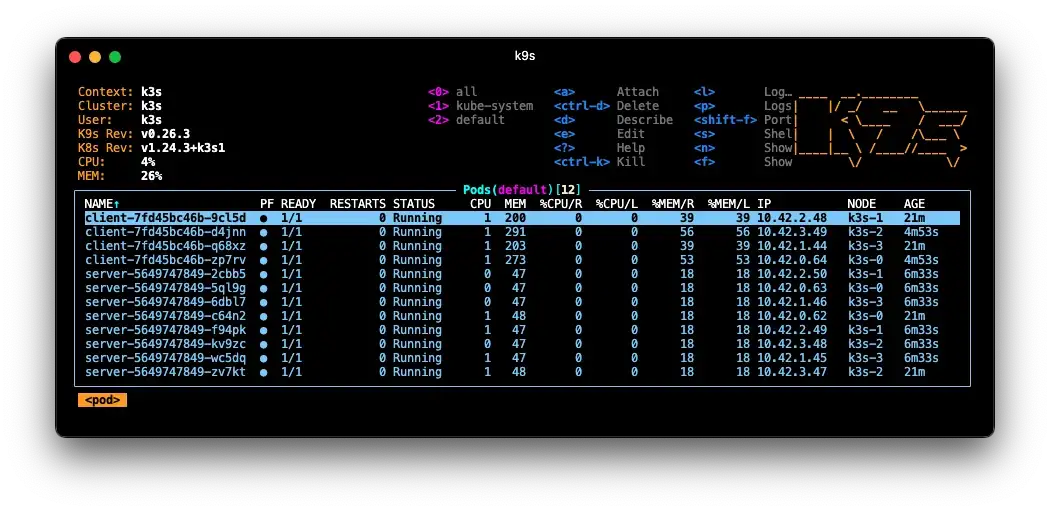
When you launch K9s, you should see a list of your running pods in the default namespace. If not, type :pod and hit Enter. In the example below, I’ve scaled up the replicas to 4x clients and 8x servers, and they’re spread across all four nodes of the cluster:
Finally…
One of the things I’ve enjoyed most about building a home lab is that it creates a space where you can properly learn by doing without the pressure, process, or cost that usually comes with production infrastructure. Want to break Kubernetes networking at 11pm on a Tuesday? Fine. Want to rebuild your cluster three times because you’ve discovered a “better” GitOps structure? Also fine.
A small Raspberry Pi cluster gives you a surprisingly capable sandbox for experimenting with distributed systems, CI/CD, observability, ingress, platform engineering, and all the other things that sound much simpler in architecture diagrams than they do at 1am while staring at kubectl describe pod.
Now try Adding a Private Docker Registry to your K3s Homelab …